A mobile app can have all the right features and still struggle if users find the interface difficult to use. When buttons are hard to find, navigation feels confusing, or users cannot complete a task easily, they often leave the app. This is where good UI and user experience become important, as they help teams create an app that users can understand and use without unnecessary confusion.
Figma reports that 95% of companies agree that a well-designed user experience plays an important role in a startup mobile app’s success. However, many first-time founders start coding before planning how users will actually move through the app.
Figma gives designers and developers a practical way to plan screens, create layouts, and test user flows before development. The platform holds a significant share of the design software market, and India is already Figma’s second largest market by active users. Whether you are in Jaipur or anywhere else, you can use Figma to design and prototype mobile apps.
This guide shows you how to design a mobile app UI from scratch using Figma. You will move from a blank canvas to a working app prototype through clear and simple steps.

Mobile App UI Design in Figma: What It Actually Covers
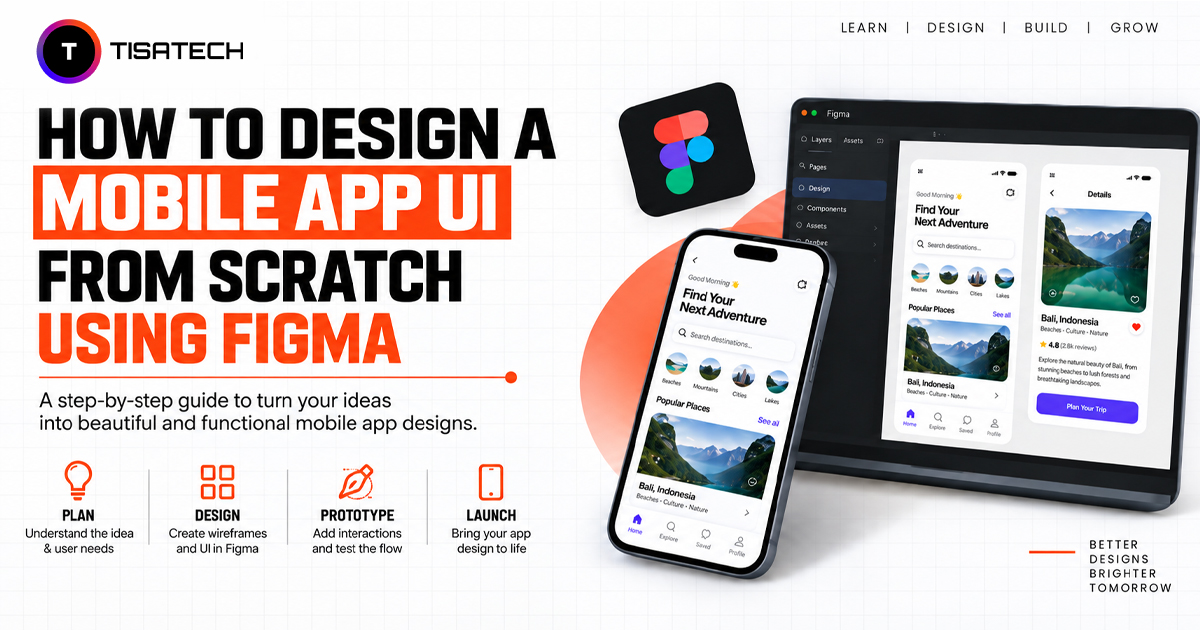
Mobile app UI design using Figma means planning and designing your app before development begins. You create each screen and decide how it should look and work, including button placement, colors, fonts, spacing, and layout.
People often confuse UI with UX. UI focuses on what users see and interact with, while UX focuses on how easy and smooth the overall experience feels. For example, a button may look good as part of the UI, but if users cannot easily find or understand it, the UX needs improvement. Figma helps you work on both. You can design screens, connect them, and check how users move through the app before developers start writing code.
In simple terms, Figma helps you create more than attractive screens. You can build a clear visual model of your app and understand how users will interact with it.
Why Figma is the Go-To Tool for Mobile App Designers
Figma makes mobile app design easy to start because it runs directly in your browser. You can open a project and begin designing without installing heavy software or using an expensive setup. This makes it a practical choice for students, freelancers, and beginners.
Figma also makes teamwork simpler. Designers and developers can work on the same file at the same time and see changes as they happen. This reduces the need to send different versions of design files back and forth.
Figma has also added AI features to support different parts of the design process. According to Figma’s State of the Designer 2026 report, 72% of designers use AI tools in their work. These features can help designers explore ideas and make changes faster.
Together, easy access, real-time collaboration, and useful design features make Figma a popular choice for mobile app designers.
Designing a Mobile App UI in Figma: Step-by-Step Process
Designing a mobile app UI in Figma follows a clear process. You start by planning the app, design its screens, connect them, and test the user flow before development begins.
Step 1: Plan Your App Idea and User Flow
Before opening Figma, decide what your app does, who will use it, and what problem it solves. Then list the main screens users will need. For example, a shopping app may include login, home, product, cart, and checkout screens. Draw a simple flow with boxes and arrows to see how users will move through the app.
Step 2: Set Up Your Figma File and Mobile Screens
Create a new Figma file and select a mobile frame for your design. Add separate frames for each app screen and use grids or guides to keep text, buttons, and other elements aligned. This helps you maintain proper spacing and a consistent layout across the app.
Step 3: Design Typography and Other UI Elements
Start by setting the typography for your app, including fonts, text sizes, and styles for headings and body text. Then add buttons, input fields, colors, and icons. Keep these elements consistent across every screen so the app looks clear and organized. You can also create reusable components for elements that appear more than once.
Step 4: Turn Your Screens Into a Clickable Prototype
Once the main screens are ready, switch to Prototype mode and connect them based on the user flow. For example, connect the login button to the home screen or a product card to the product details page. You can then preview the design and move through the app like a user would.
Step 5: Test the Design Before Development
Share the prototype with a few users and observe how they interact with it. Look for places where users hesitate, miss buttons, or feel confused. Fix these issues before handing the design to developers.
Following this process helps you turn an app idea into a clear and clickable design in Figma. It also gives developers a better understanding of how the app should look and work before they start building it.





Best Place in Jaipur to Learn Figma and UI Design
Figma becomes easier to understand when you can apply what you learn while designing actual app screens. TISA-TECH in Jaipur offers a UI/UX Design program where students work with Figma and move from basic design concepts to complete mobile app prototypes.
The program follows a classroom-based approach where students can work on their screens and get them reviewed during the process. This gives them a chance to identify mistakes in layouts, navigation, and other design elements instead of simply moving from one tutorial to another.
Students also work on projects based on real briefs, which helps them create complete app designs rather than only practicing individual tools. For anyone in Jaipur looking to build mobile app interfaces in Figma with regular guidance and design reviews, this approach offers a more structured way to develop their skills.
Conclusion
A good mobile app interface starts taking shape long before developers begin writing code. Figma gives you space to explore ideas, see how different screens work together, and catch problems while changes are still easy to make.
The more you design and review your work, the better you understand what makes an interface clear for users. Start with a simple app idea, keep improving your designs, and use each project to build stronger UI design skills.
FAQs Section
Ans. Yes. Figma allows designers to create complete mobile app screens, including layouts, buttons, input fields, typography, colors, and icons. It also lets teams connect screens, build clickable prototypes, and review the app flow before development begins.
Ans. UI covers the visual and interactive parts of an app, such as layouts, buttons, colors, and typography. UX focuses on how smoothly users navigate the app and complete tasks. Together, they help create an interface that looks clear and works smoothly.
Ans. No. Figma lets designers create app screens, layouts, and clickable prototypes without writing code. Developers can later use the design as a reference when building the actual application.
Ans. Teams should review the layout, spacing, typography, colors, buttons, and navigation flow before sharing the design. They can also test the prototype to identify confusing interactions, missing screens, or other design issues before development starts.