AI has become a regular part of student life. Most students now use AI tools to understand difficult topics, complete assignments, write code, summarise notes, and save time. According to the 2025 HEPI student generative AI survey, student use of AI tools increased sharply in just one year, with almost every student using some form of AI during their studies, mainly to save time and improve their work. AI use in higher education is also growing in India. A 2025 report on AI adoption in Indian higher education found that more than 60 percent of higher education institutions now allow students to use AI tools.
However, most students rely on cloud-based AI apps such as ChatGPT and Gemini. These tools need a stable internet connection and often have free usage limits. Students may also have privacy concerns when using them for personal projects, coding assignments, or sensitive notes. A poor internet connection can make these tools difficult to use when students need them most.
Open source AI models offer another option. Students can download and run these models directly on their own laptops. Once downloaded, many models can work without an internet connection. This guide covers the best open source AI models for students, what each model can help with, and how to run one on a laptop.

What Are Open Source AI Models?
An open source AI model is an AI model that users can download and run on their own computer. The model files are publicly available, so you can access and use them without relying on a cloud-based AI app. Companies such as Meta, Alibaba, Microsoft, Mistral AI, and Google have released AI models that people can download and use.
To run one, you download the model and use compatible software on your laptop. You do not need to open a website every time you want to use the AI. Once you set up the model, it runs directly on your device.
This is different from tools like ChatGPT or Gemini, which run on company servers. When you use a local AI model, the model runs on your laptop instead. You can ask questions, work with code, or summarise notes directly on your device.
Why Should Students Use Open Source AI Models Locally?
Open source AI models give students the option to use AI without depending only on cloud-based apps. After downloading a model, you can run it on your laptop without needing a constant internet connection. This can help when the internet is slow or unavailable.
Privacy is another reason to run AI models locally. If you are working on a personal project, coding assignment, startup idea, or private notes, you may not want to share that information with an online AI service. A local model keeps the work on your own device.
Cost can also make a difference for students. Many open source AI models are free to download and do not require a monthly subscription. You can use them without worrying about running out of messages in the middle of a study session.
A local model can also respond quickly because it runs directly on your laptop. However, the speed depends on your laptop’s hardware and the size of the model.
What Should You Check Before Running Open Source AI Models on Your Laptop?
Before choosing an open source AI model, check your laptop’s RAM. RAM helps determine which models your laptop can run smoothly. With 8GB RAM, you can usually run smaller models. With 16GB RAM, you can run larger models and have more options.
Storage matters too. AI models need space to download, and larger models take up more storage. The Ollama model library shows the download sizes of different models.
You do not need a gaming laptop or a dedicated graphics card to get started. Many local AI models can run using your laptop’s CPU and RAM. A GPU can improve performance, but it is not required for every model, depending on the hardware support available for the software you use.
Many modern and entry-level laptops can run smaller AI models. Choose a model that matches your laptop’s RAM and available storage.
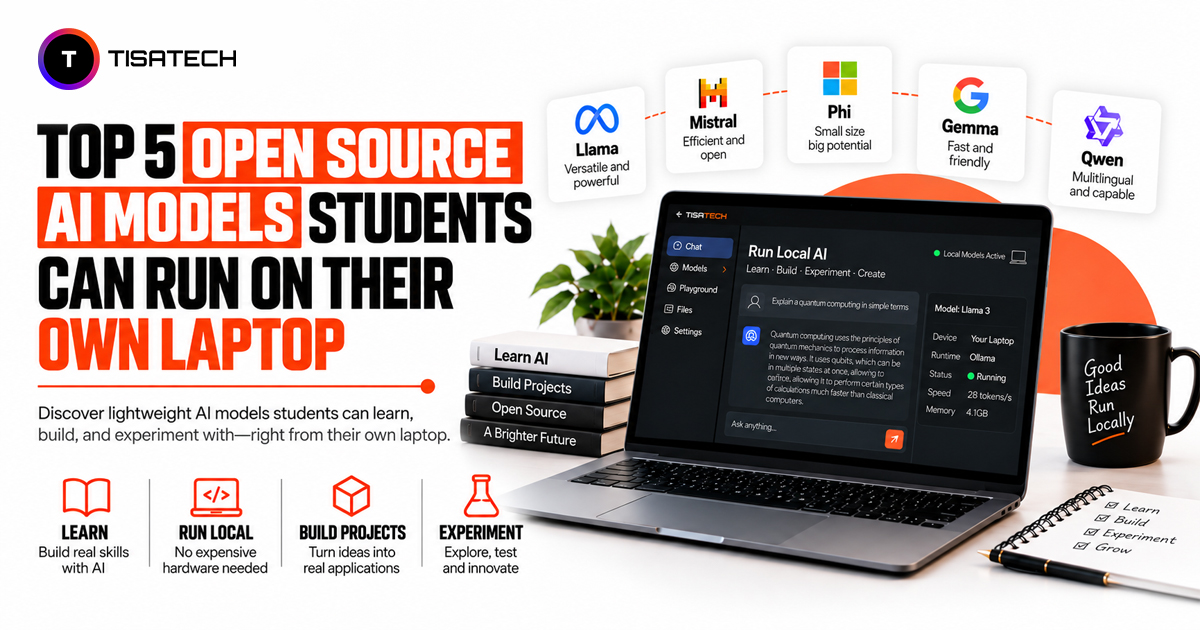
Top 5 Open Source AI Models Students Can Run on Their Own Laptop
Here are five open source AI models students can consider in 2026. Each model works well for different needs, from general questions and coding to quick everyday tasks and studying on a lower-spec laptop.
1. Llama 3.2 by Meta
Llama 3.2 is a good starting point for students who want one model for everyday tasks. It can explain concepts, summarise notes, draft emails, and answer general questions. It offers a good balance between quality and speed and can suit students who want one model for different tasks instead of a specialised option.
2. Qwen 2.5 and Qwen 3 by Alibaba
If your coursework includes coding, math, or technical subjects, Qwen 2.5 and Qwen 3 are worth considering. These models can help with programming tasks, debugging, and logical reasoning. Computer science and engineering students may find them useful for practising code and understanding error messages without depending on a cloud-based AI app.
3. Mistral 7B and Ministral
Mistral 7B and Ministral are useful for students who want quick responses without downloading a very large model. They can help with everyday tasks such as rewriting paragraphs, generating study notes, and answering questions. Their smaller size makes them a practical choice for regular use.
4. Phi-4 Mini by Microsoft
Phi-4 Mini is a useful option for students using older or lower-spec laptops. It can handle everyday AI tasks without requiring high-end hardware. Students who cannot run larger models can consider it for general use and study-related work.
5. Gemma 2 by Google
Gemma 2 works well for general knowledge questions, following instructions, and summarising longer content. Students can use it to turn lengthy chapters or reading material into shorter notes. This makes it useful for regular study and structured academic tasks.
These five models cover different student needs. Llama 3.2 works well for general use, Qwen suits coding and technical tasks, Mistral handles quick everyday work, Phi-4 Mini is useful for lower-spec laptops, and Gemma 2 helps with studying and summarising longer content.





How Do You Actually Run These Models on a Laptop?
Running an AI model on your laptop is easier than it sounds. Tools like Ollama and LM Studio let you download and run AI models locally without dealing with complex technical setup.
First, download and install the tool. Then choose a model from its library and download it. The software handles the basic setup for you.
Once the model is installed, you can type your questions into its chat window, just like you would in any other AI app. The model processes your requests on your laptop and can continue working without an internet connection after you download it.
Start with one model and see how well it runs on your laptop. If it works well and you have enough storage, you can try other models later.
Conclusion
You do not need to search for one perfect open source AI model. Choose a model based on what you study, the tasks you need help with, and what your laptop can run comfortably. Some models work better for coding, while others suit general questions, quick tasks, or summarising study material.
Start with one model and use it on your laptop. You can install it through a tool like Ollama and see how it works for your regular study or coursework. If it suits your needs, keep using it.
FAQs Section
Ans. Keep some extra storage beyond the model’s download size. You also need space for the software and other model files. Check the model size before you download it.
Ans. Yes, you can install multiple models if your laptop has enough storage. Start with one model and see how it works. Download another model later if you need it for a different task.
Ans. Choose a smaller version of the model or try a model with fewer parameters. Close unnecessary applications to free up RAM. If the model still runs slowly, choose a model that better matches your laptop’s hardware.
Ans. Yes, you can use local AI models to explore ideas, practise coding, understand topics, and work on your own projects. Check the model’s licence before using it for commercial or other purposes beyond personal learning.