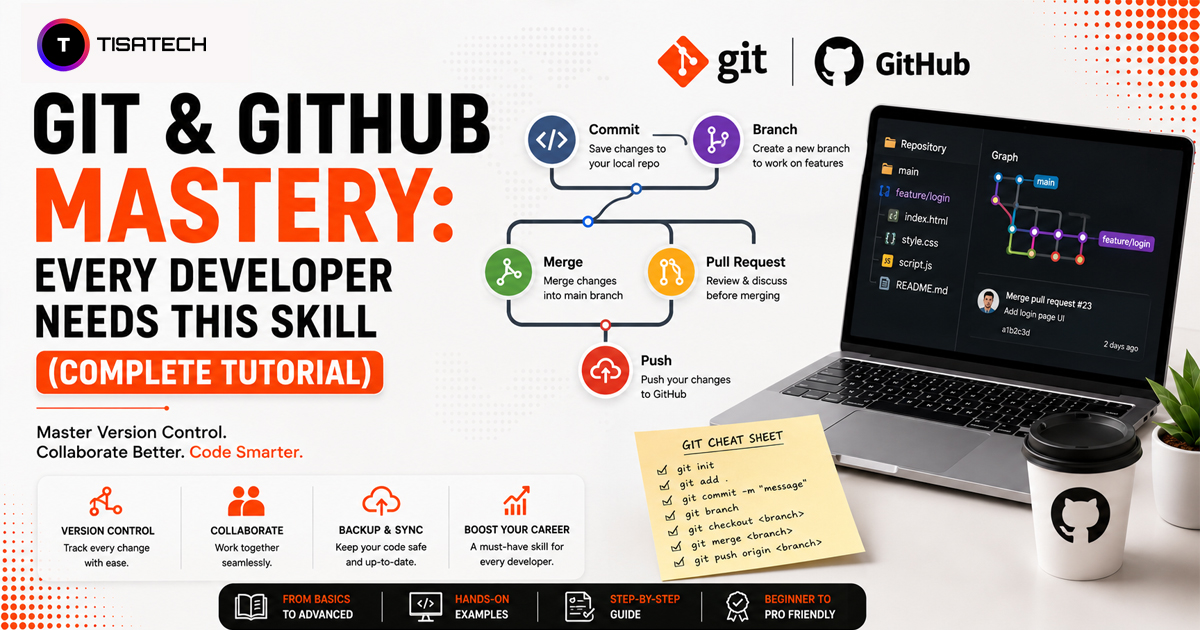
Imagine working on a project, changing a few lines of code, and later realizing that the older version worked better. Without a proper system, it becomes difficult to track what changed, restore the previous version, or understand where the problem started.
Git solves this problem by tracking every important change in your code. GitHub takes it a step further by giving developers a place to store projects online, share code, and work with others.
Git adoption among developers rose from 87.1% in 2016 to 93.87% in 2025, according to commandlinux.com. According to Forbes, GitHub added more than 5 million new developers from India in 2025, as reported in its Octoverse 2025 report.
This is why Git and GitHub have become important tools for personal projects, team development, open-source work, and professional software development. This complete tutorial explains both tools in simple language, from basic commands and commits to branches, repositories, and collaboration.

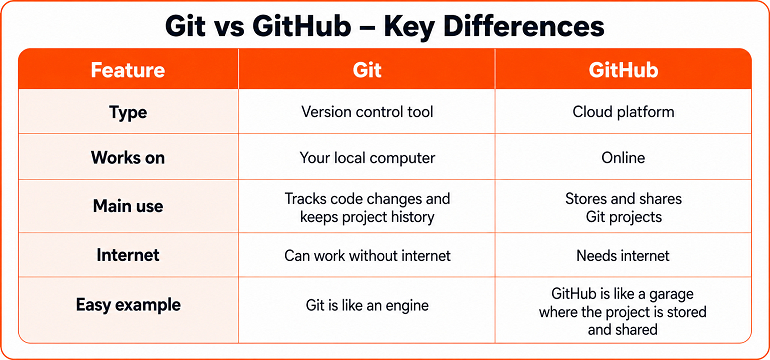
What is the Difference Between Git and GitHub?
Git and GitHub often sound like the same thing, but they serve different purposes. This simple comparison makes the difference easier to understand.
When & Why Should You Actually Use Git?
You should use Git whenever you want to track changes in a project or keep different versions of your code safely. It is useful for personal projects, college assignments, team projects, and professional development work.
Git becomes especially helpful when you make a mistake and need to return to an older version. Instead of creating folders like final, final2, or final_actual, Git keeps every important change in one clear history.
You should also use Git when working with other developers. Features like commits and branches help teams manage changes without overwriting each other’s work. These same skills are also useful when you start working on real company projects.
How Do You Install and Set Up Git for the First Time?
Getting started with Git only takes a few steps. First, download and install Git from git-scm.com. Git is available for Windows, macOS, and Linux.
After installation, add your name and email to Git. This information gets attached to your commits and helps identify which developer made a particular change in the project.
git config --global user.name "Your Name"
git config --global user.email "your.email@example.com"

Next, set main as the default branch for new projects.
git config --global init.defaultBranch main
Here, the default branch means the branch Git creates automatically when you start a new repository. This command tells Git to use main as the starting branch.
Now open the terminal, move to your project folder, and run:
git initThis command turns the folder into a Git repository and creates a hidden .git folder. Git uses this folder to store the project history and other tracking information.
What is the Basic Git Workflow Every Beginner Should Know?
Every Git project follows three basic stages: the working directory, the staging area, and the local repository. Understanding these stages makes Git much easier to use.
The working directory is the project folder where you edit files normally. You can run git status to check which files have changed, which are new, and which are ready for the next commit.
Use git add to move selected changes into the staging area. If you want to add all current changes at once, run:
git add .After staging the changes, save them in the project history with a commit:
git commit -m "Added login page"The commit message briefly explains what you changed. You can then run:
git log --onelineThis shows a short history of the commits made in the project.
In simple terms, the Git workflow is: edit files → check changes → stage changes → commit them → view history.
How Do Branches and GitHub Collaboration Actually Work?
Branches let you work on a new feature without changing the main version of the project. For example, you can create a separate branch for a login feature and work on it safely.
git checkout -b feature-loginOnce the feature is ready, switch back to the main branch and merge the changes.
git checkout main
git merge feature-login
GitHub helps you share this project online and work with other developers. First, connect your local project to a GitHub repository and push the code.
git remote add origin https://github.com/username/repo.git
git push -u origin main
For regular collaboration, beginners should know three common commands:
- git clone downloads a GitHub project to your computer
- git pull gets the latest changes from GitHub
- git push sends your local commits to GitHub
In simple words, branches help you work safely on new changes, while GitHub helps you share and update the project with others.
What Should You Do When Something Goes Wrong?
Mistakes are common while using Git, and most of them can be fixed with the right commands.
A merge conflict happens when two developers change the same part of a file in different ways. Git stops the merge and asks you to decide which version you want to keep. You can run git status to see which files have conflicts.
After opening the conflicted file, choose the correct code and remove the unwanted part. Then save the file and run:
git add .
git commit -m "Resolved merge conflict"
Git also provides a few useful commands for other common problems:
- git stash temporarily saves unfinished changes
- git stash pop brings those saved changes back
- git revert safely undoes a bad commit without deleting project history
- git reset –hard removes changes and moves the project back to an earlier state, so use it carefully
These commands help you fix common Git mistakes without losing control of your project.





How Does TISA-TECH Turn Git and GitHub Theory Into Real Practice?
Git and GitHub become easier to understand when students use them during real development work instead of only learning commands.
TISA-TECH gives students project-based practice during development training, where they use repositories, commits, branches, push, pull, and merge while building projects. This helps them understand how Git fits into the actual development process.
Students may also face common issues such as merge conflicts, wrong commits, or version problems during project work. Mentors guide them through these situations and help them understand the correct way to solve them.
This practical experience helps students manage code more confidently, work better on team projects, and understand how Git and GitHub are used in real development workflows.
Final Thoughts
Git and GitHub are important skills for developers because they help manage code, track changes, and work with teams.
You do not need to learn everything at once. Start with a few basic commands, practise them on real projects, and improve step by step. Regular practice will help you use Git and GitHub with more confidence in projects and interviews.
FAQs Sections
Ans. Git is a version control tool that tracks changes in code. GitHub is an online platform used to store, share, and collaborate on Git repositories.
Ans. Yes. Beginners can start with basic commands such as git init, git add, git commit, git push, and git pull while working on small projects.
Ans. Yes. Git works locally on your computer without GitHub or an internet connection. GitHub is mainly used to store projects online and collaborate with others.
Ans. They help developers track code changes, manage different versions, work safely on new features, and collaborate with teams on real projects.
Ans. Yes. Many companies expect developers to understand repositories, commits, branches, push, pull, and basic collaboration workflows. These skills are also commonly discussed during technical interviews.